Before you join
Joining as a Student changes your whole account, not just your membership in one class.
- Your account becomes a student account.
- All your active posters move into the school group and become private. Your poster content and authorship are kept.
- Existing public links and access through communities outside this group stop working.
- Posters stay in a community only when that community belongs to this group.
- Existing viewing passwords remain.
- You need a group editing licence to create or edit posters.
- Leaving the group does not restore a standard account.
The school group’s owner and admins can view private group posters. Mentors can view private posters from members of their communities. This visibility does not let them edit or delete your posters. Existing viewing passwords still apply.
Check with your teacher before accepting if your account contains personal work that should stay outside school management. You can cancel before accepting; opening an invitation or signing in does not join the group or convert your account.
Open your teacher’s invitation
Scan the QR code, open the invitation link or enter the code your teacher gives you. Check that the invitation names the correct school and shows the Student role.
If you received an email invitation, use the account with that email address. Ask your teacher for a new invitation if it was sent to another address.
Sign in to your existing account
Choose Sign in and use your existing account. Check which account is signed in before you continue.
Teachers joining as Admin or Mentor should use their teacher invitation. They should not accept the student QR invitation to join as staff.
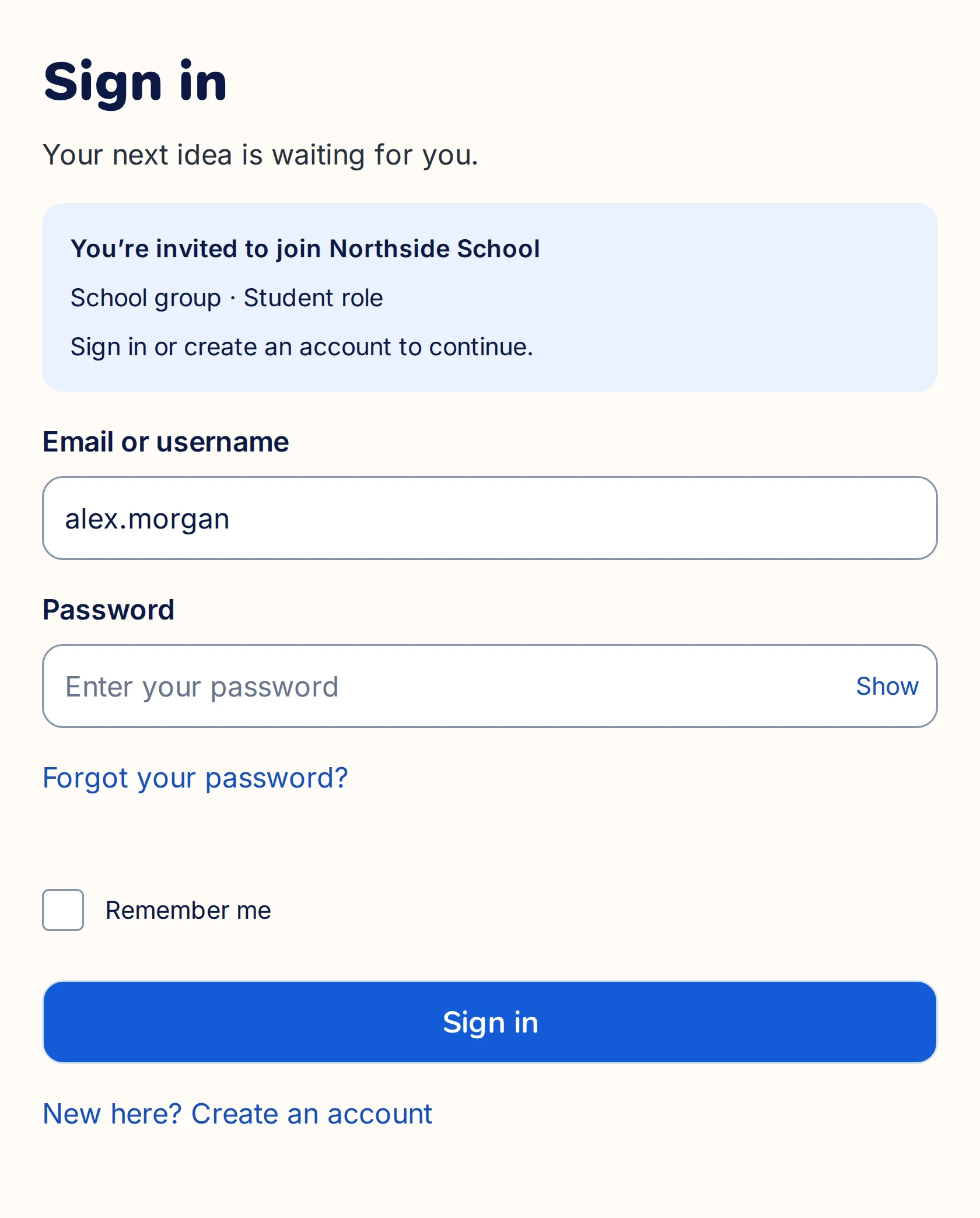
Check the school name and sign in to the account you intend to use for school.
Read and accept the changes
On Before you join, read the account changes. If you agree, select the consent checkbox and choose Accept and join group.
The conversion happens when you accept. The school does not convert your existing account just by sending an invitation.
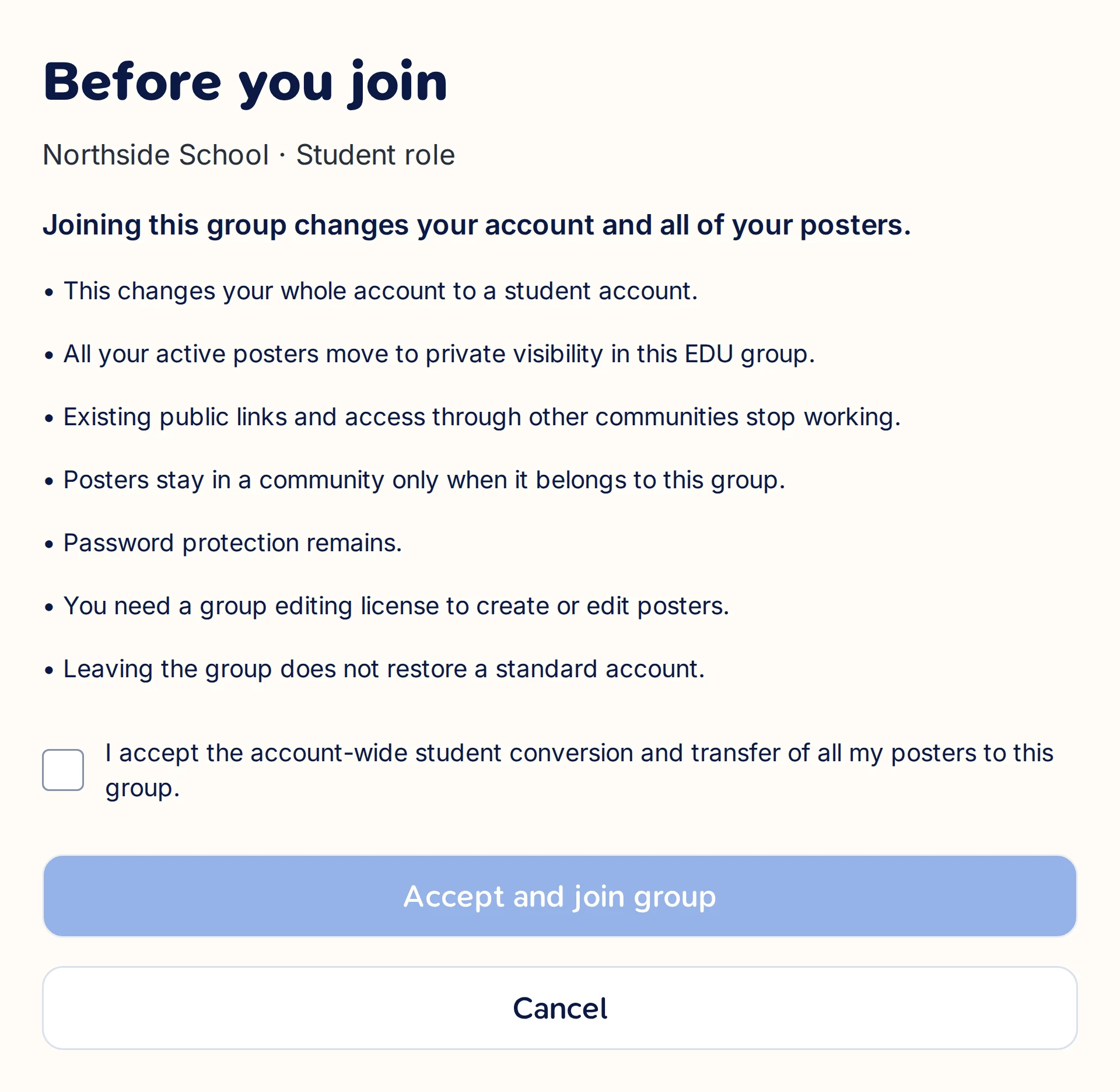
Read every account change before selecting the consent checkbox. Opening this screen does not convert your account.
If you already have a student account, the invitation asks you to confirm joining without converting the account again.
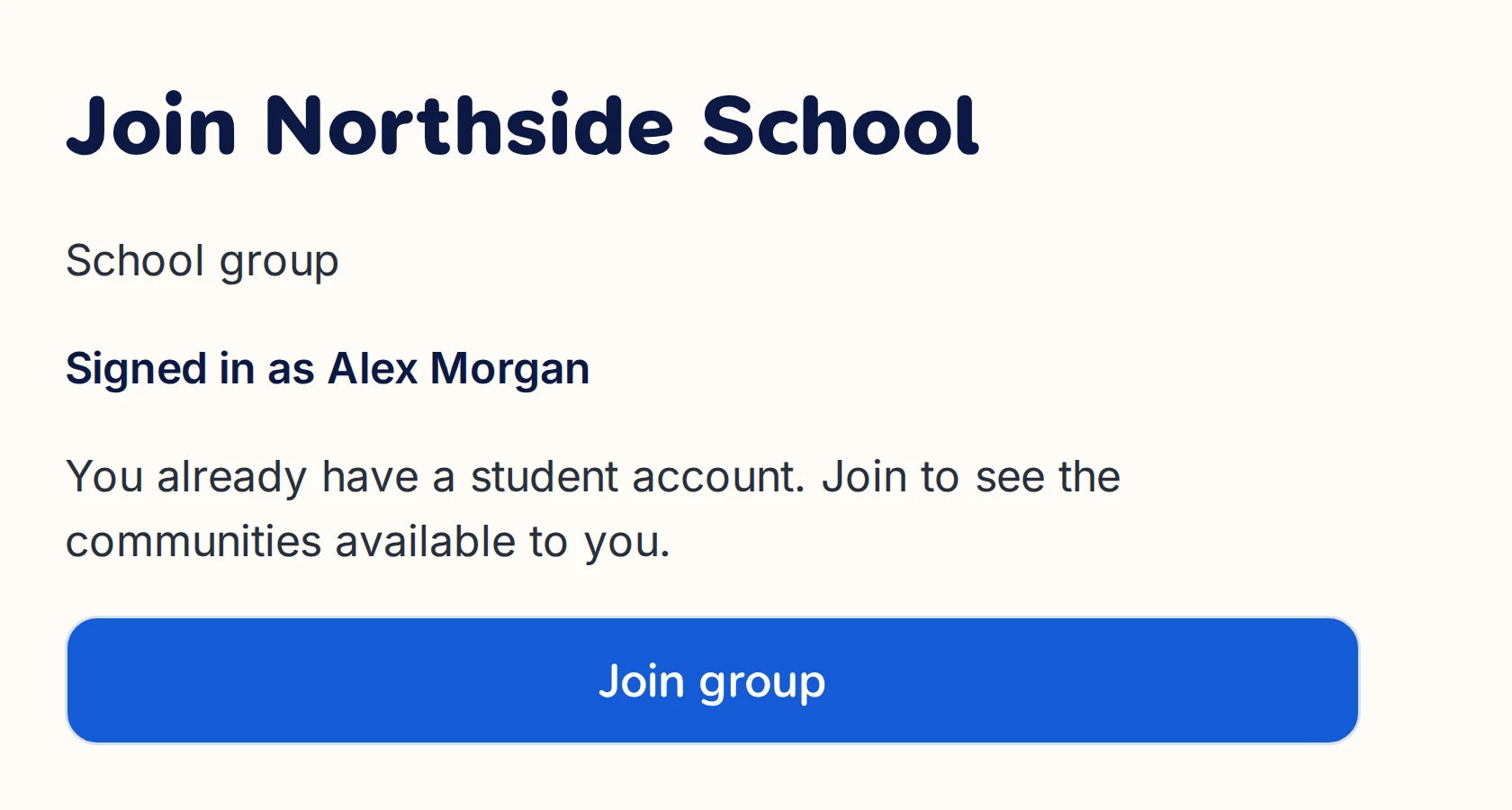
Existing Student accounts confirm joining without a second account conversion.
Open your class community
After joining the group, open the communities available to you. Choose your class or project. If it is Open, you can join it without a separate community invitation.
If your teacher invited you directly to a community, accepting also adds the required school group membership.
Check that you can create and save a poster. If editing is unavailable, ask your teacher or school admin to check your group editing licence. You may have joined successfully while waiting for a seat.
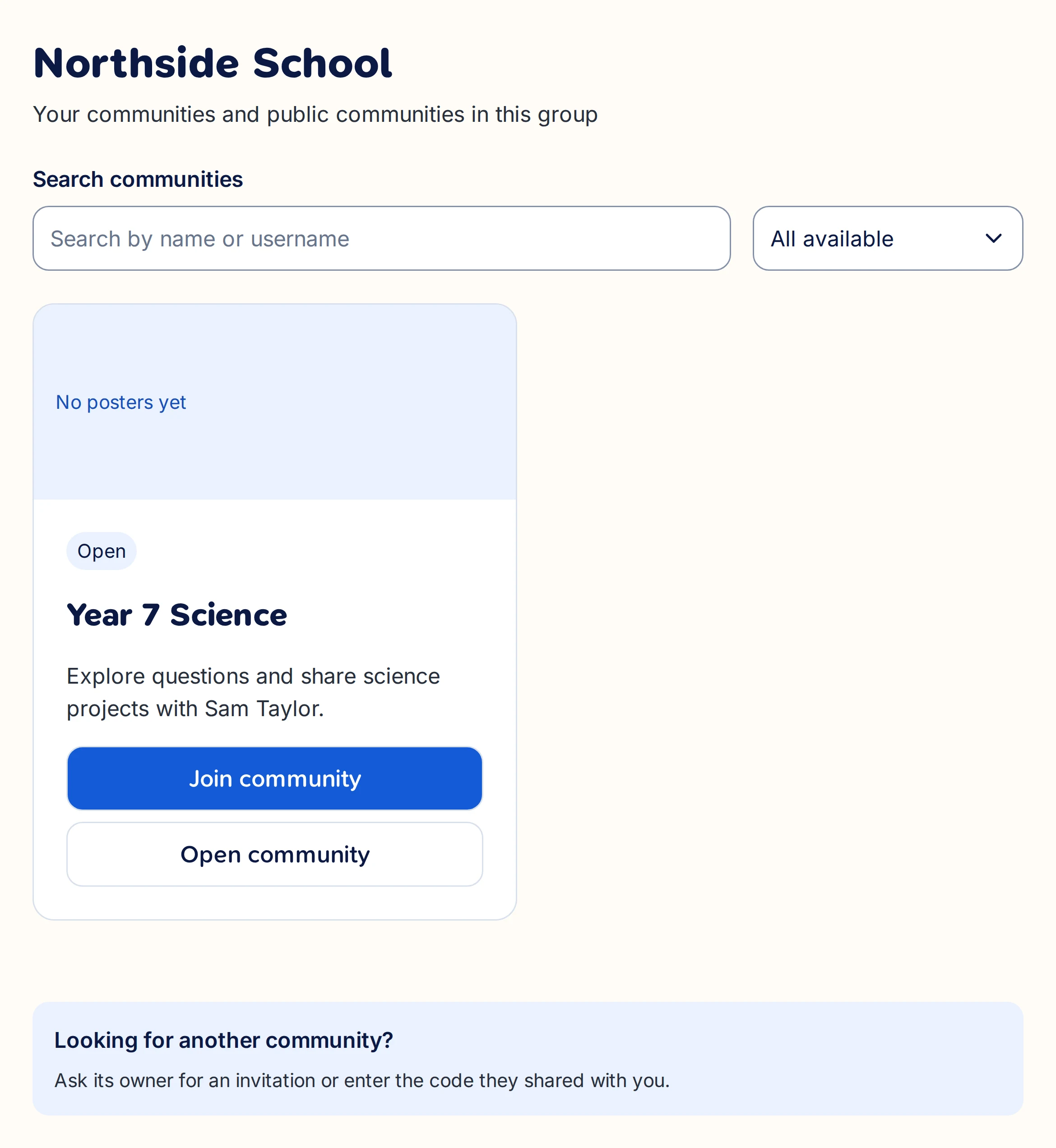
After joining the school group, choose Join community for an open class.
If you cannot join
Your account belongs to a normal group: this blocks Student conversion. Ask your teacher for help before changing existing memberships. A separate school account is an option. An email invitation must then be sent to that account’s email address.
The invitation is for another email address: sign in with the matching account or ask your teacher to send a new invitation.
The code or link no longer works: ask your teacher for the current invitation.
You cannot receive an invitation email: ask school IT to check Canvastera email delivery.
For teachers inviting existing students
Share this guide before students accept. Explain that the invitation changes the account and existing posters, and allow time for questions.
Use the Student role for learners and check editing-seat capacity before the class joins. After acceptance, check the member list and the student’s editing access. For the full workflow, read Set up Canvastera for your school.